
Chapter 4
Use the Minute Data app
Sign up for Minute Data, then record and save your videos
On this page
📋 Looking for something to record? → See all tasks you can record
Minute Data is the app you record in. It only has a few buttons, so just follow the steps on this page in order.
🪙 The app mentions "Real money" and "Paid by the Minute". For this campaign, your reward comes as Sampo points. Minute Data doesn't send you money directly.
First: get your org code in Sampo
Once you pass the test recording, Sampo shows a Sign up for Minute Data screen.
- Download Minute Data from there.
- Tap Copy to copy your org code. You'll enter it as the invite code when you create your account.
- Back in Sampo, enter the email you used for Minute Data and tap Finish sign-up.
Don't share your org code with anyone.
0. Install the app
Get it from your app store, or search for "Minute Data".
- iPhone: App Store
- Android: Google Play
Look for the white "M." on a black icon.
Already have it? Update to the latest version. Older versions may stop recording.
A. First launch: intro and consent
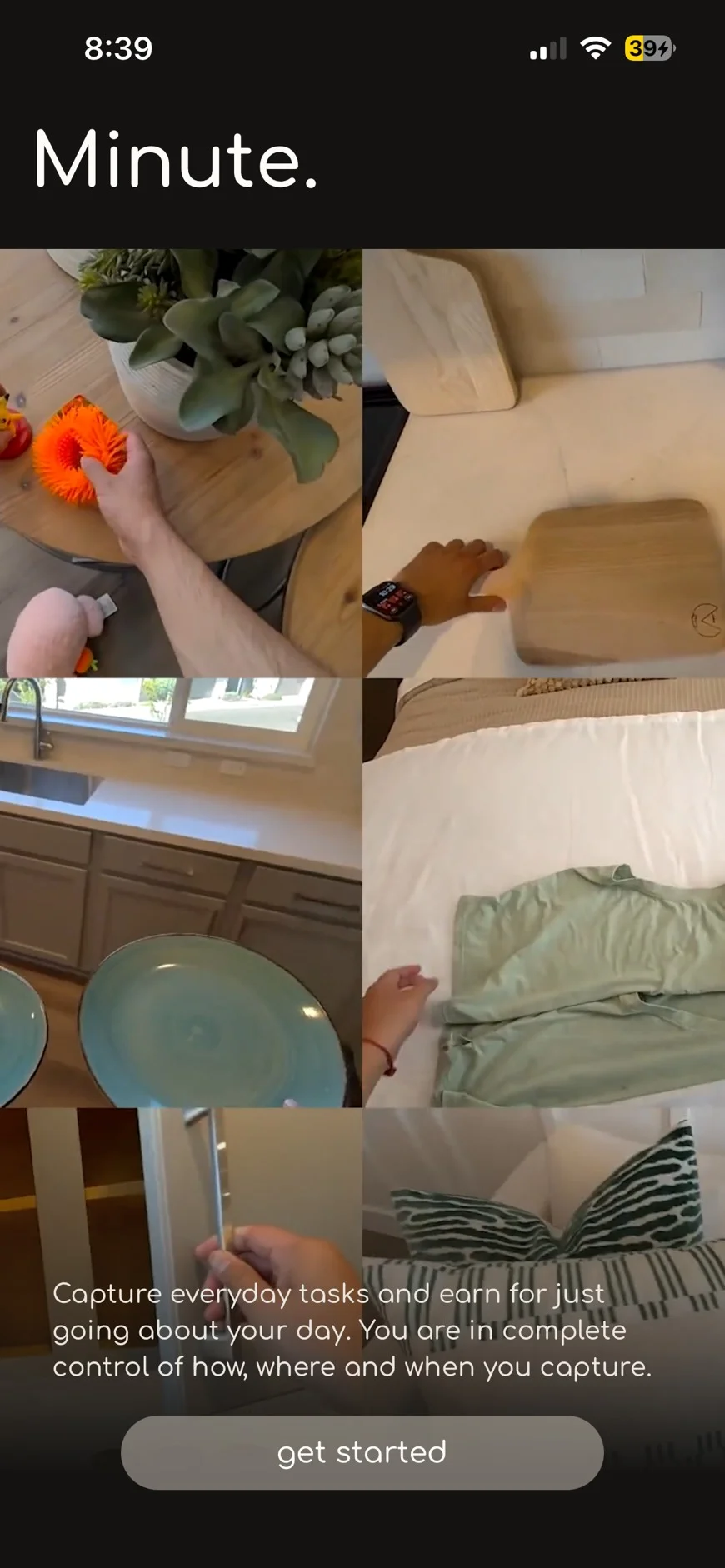
① Welcome screen
Tap get started.
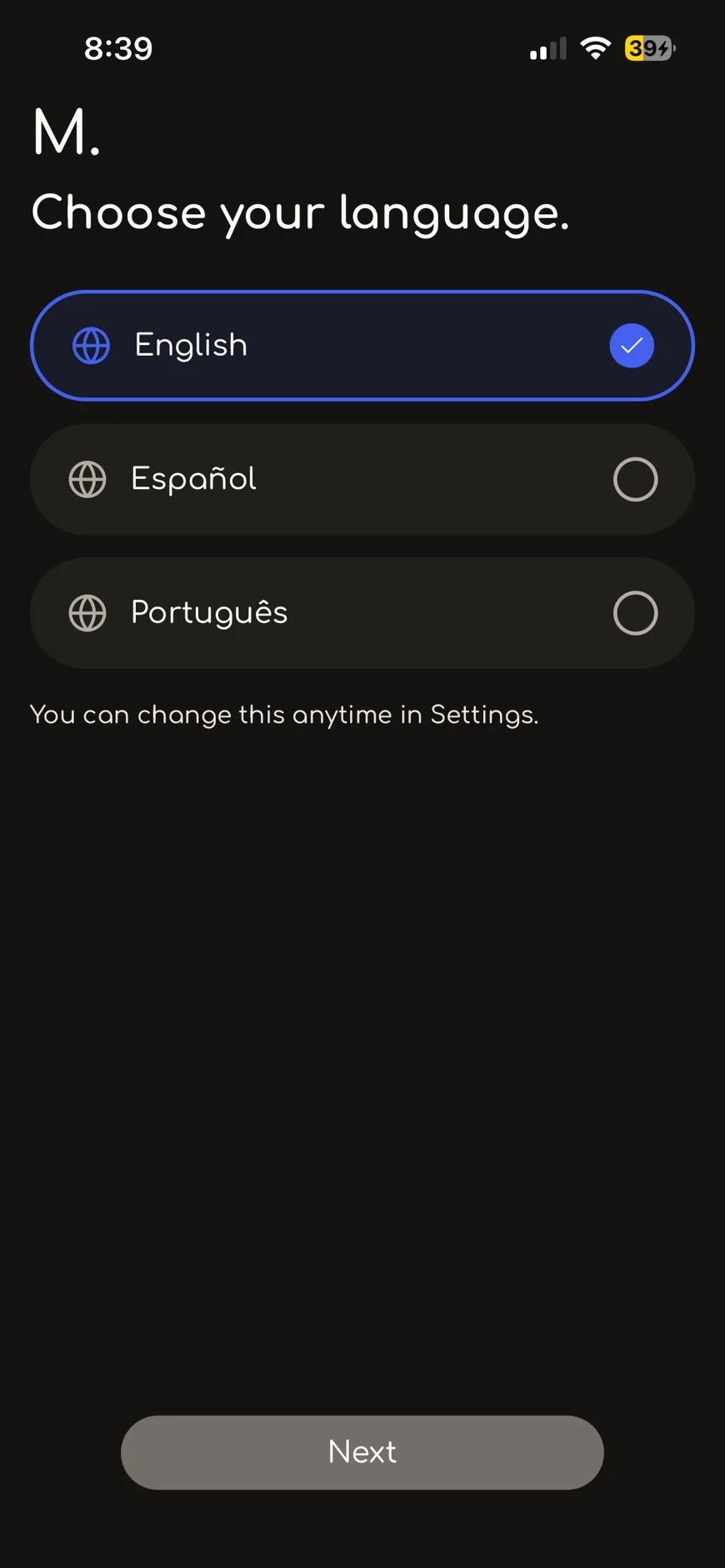
② Choose your language.
Choose your language and tap Next.
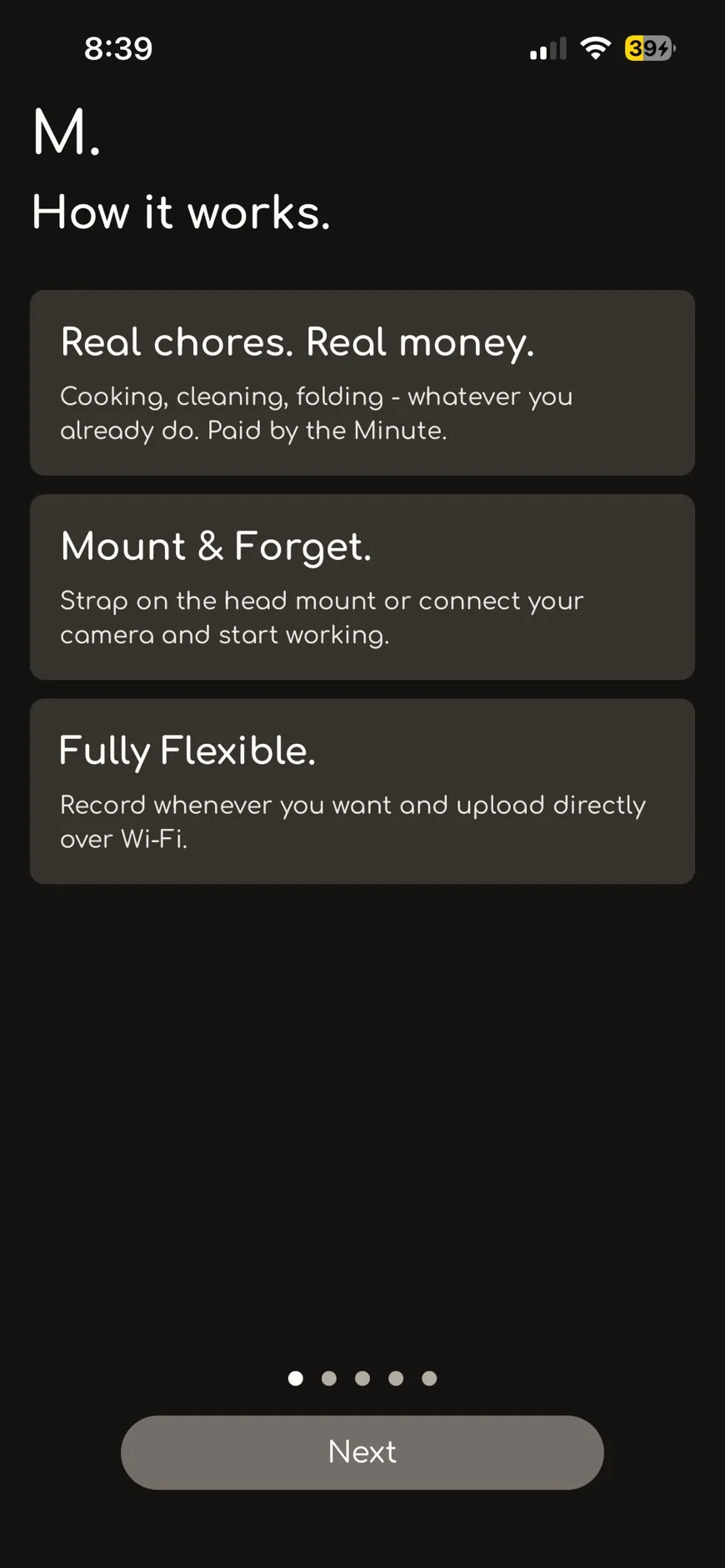
③ How it works.
- Real chores. You record the chores you already do.
- Mount & Forget. Put on the head mount, then just do your chores.
- Fully Flexible. Record whenever you like and upload over Wi-Fi.
Tap Next.
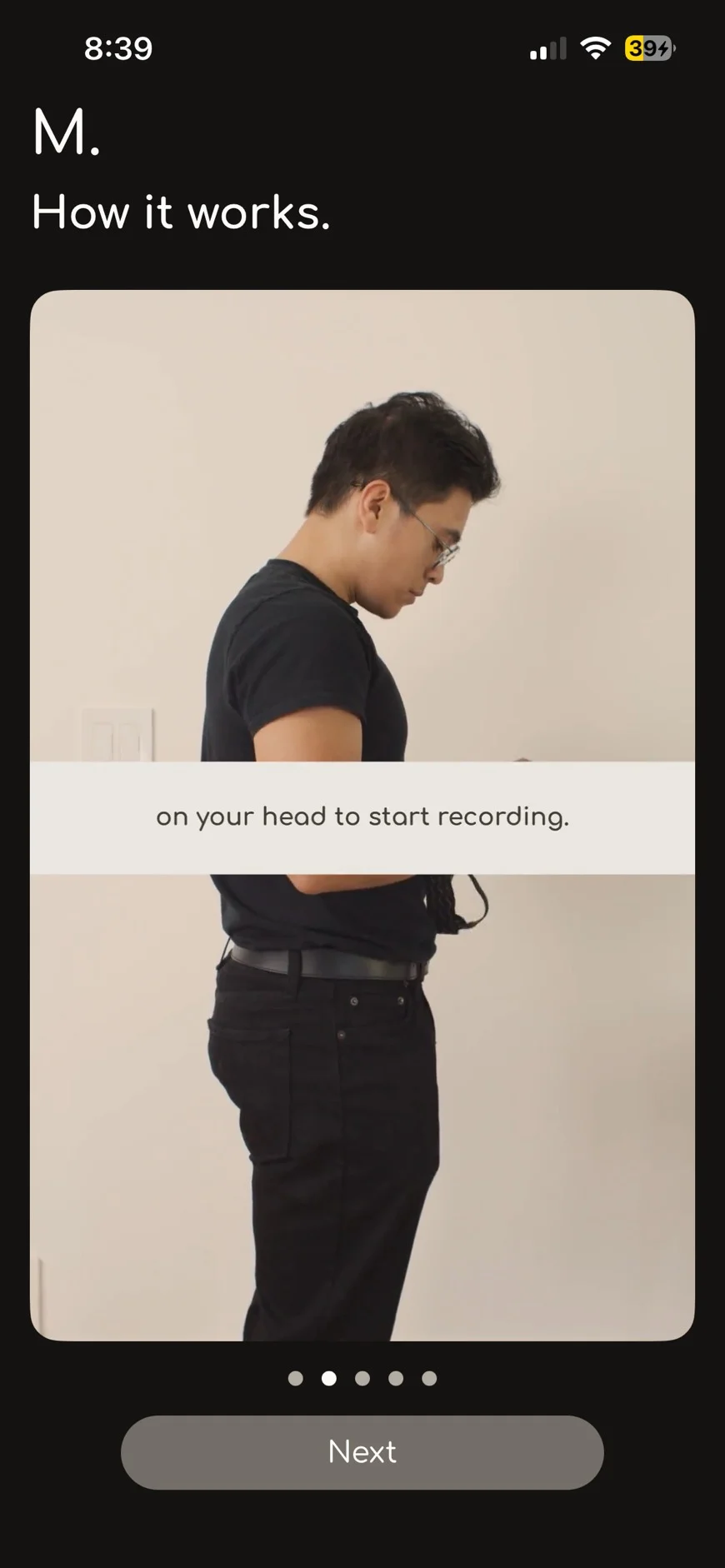
④ How to wear the head mount
Watch the video, then tap Next.
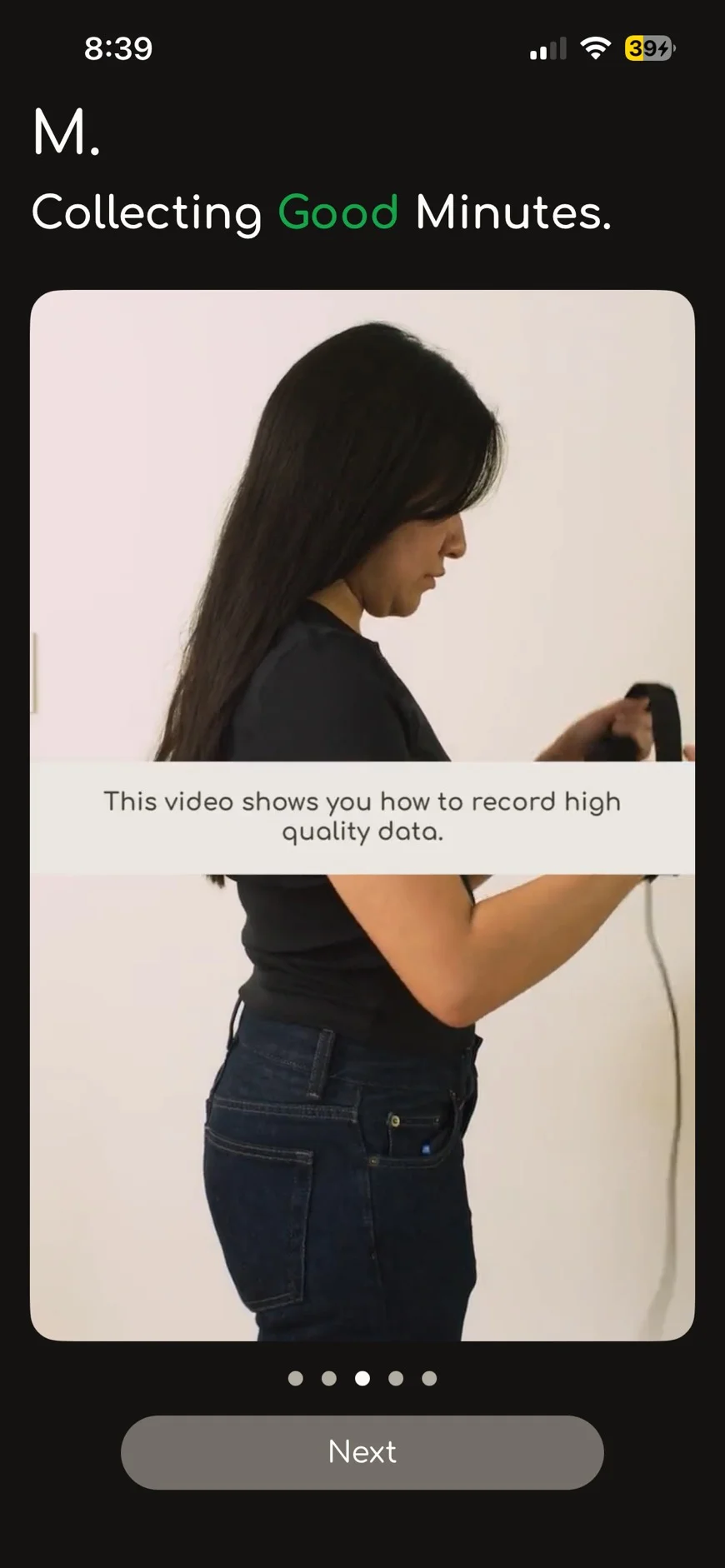
⑤ Collecting Good Minutes.
Watch the examples of good recordings, then tap Next.
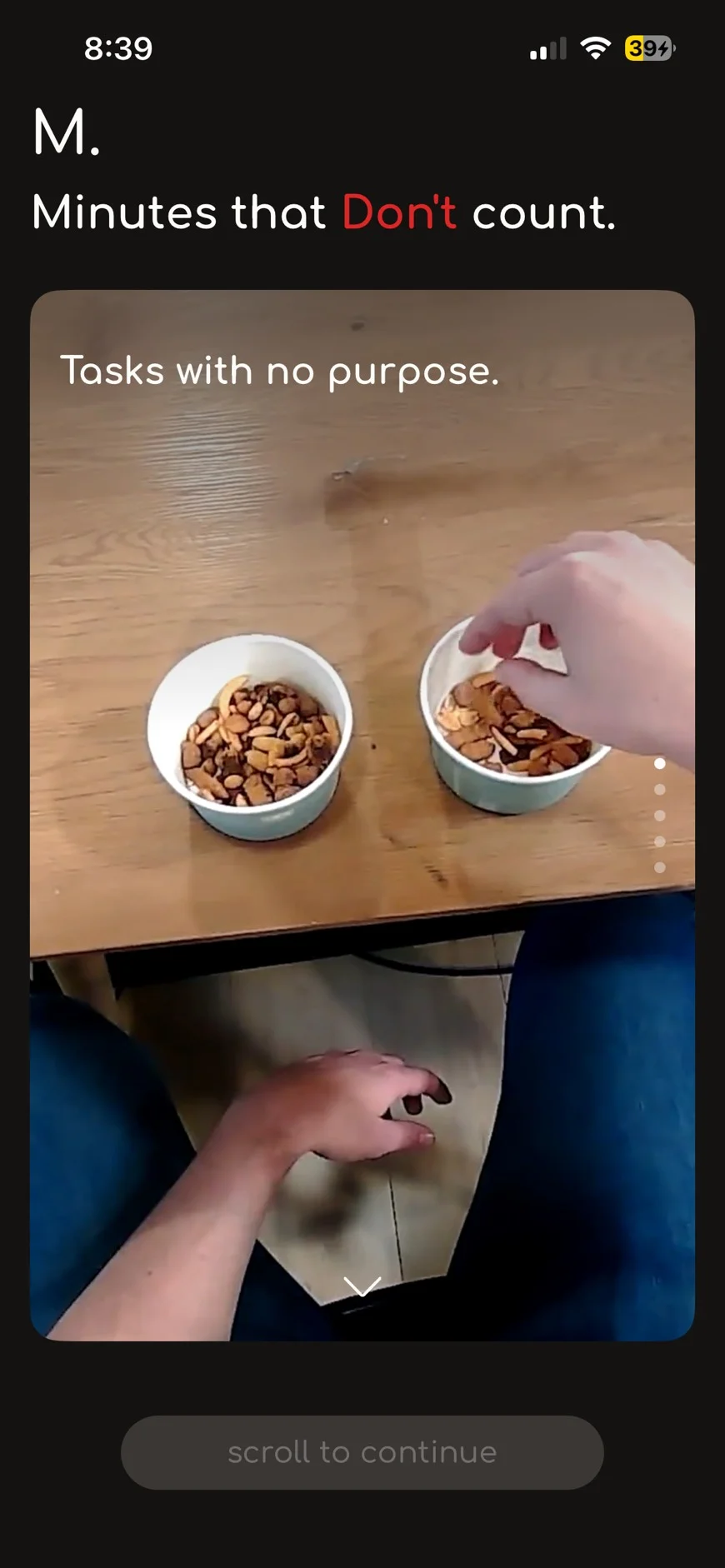
⑥ Minutes that Don't count.
These are recordings that won't be approved. One example is Tasks with no purpose, like moving nuts from bowl to bowl over and over.
Scroll all the way down to unlock the button. It's the same content as the Sampo training.
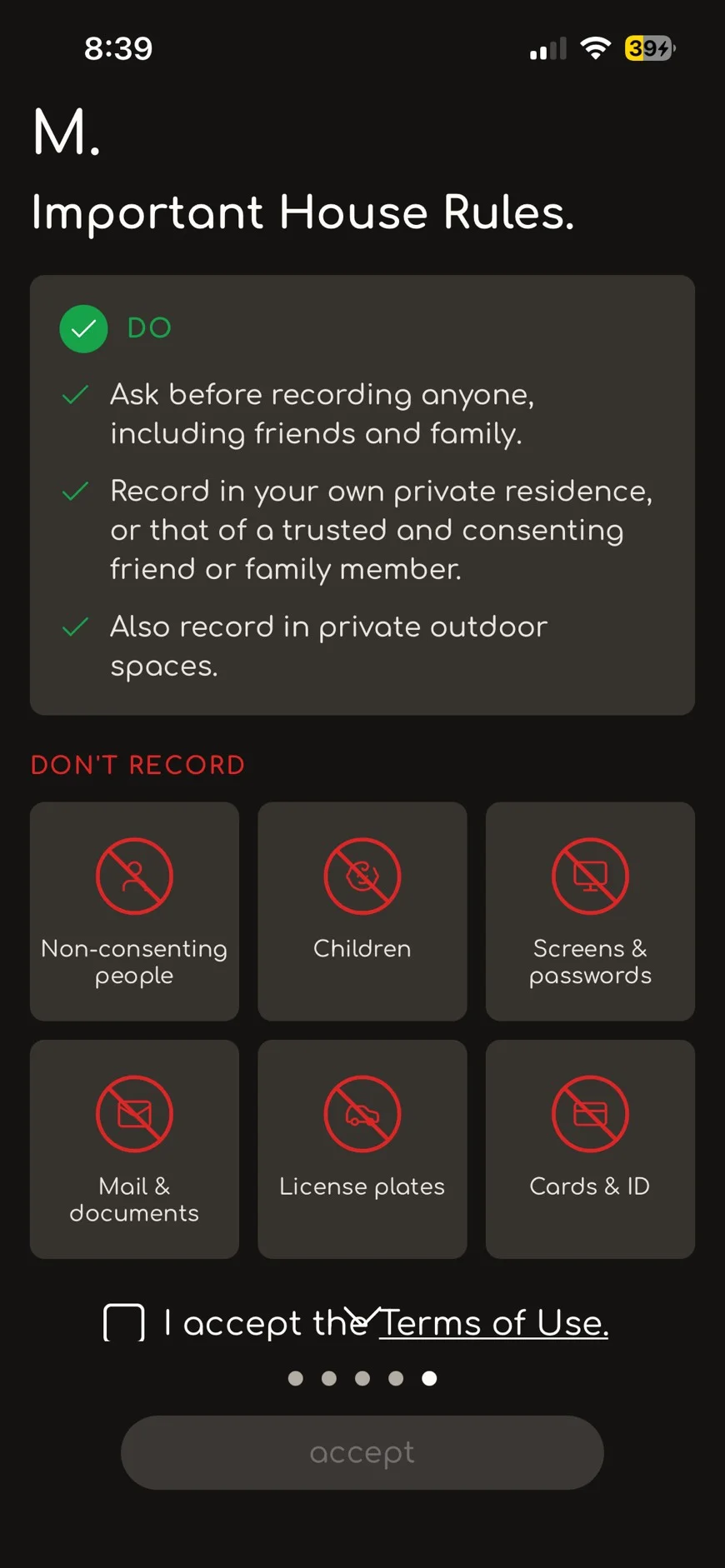
⑦ Important House Rules.
Do
- Ask before you record anyone, even family or friends.
- Record at home, or at a family member's or friend's home with their OK.
- Record outside your own home too, like in your yard or on your balcony.
Don't record
- People who haven't agreed to be recorded
- Children
- Screens and passwords
- Mail and documents
- License plates
- Cards and IDs
Check I accept the Terms of Use. and tap accept.
B. Create your account
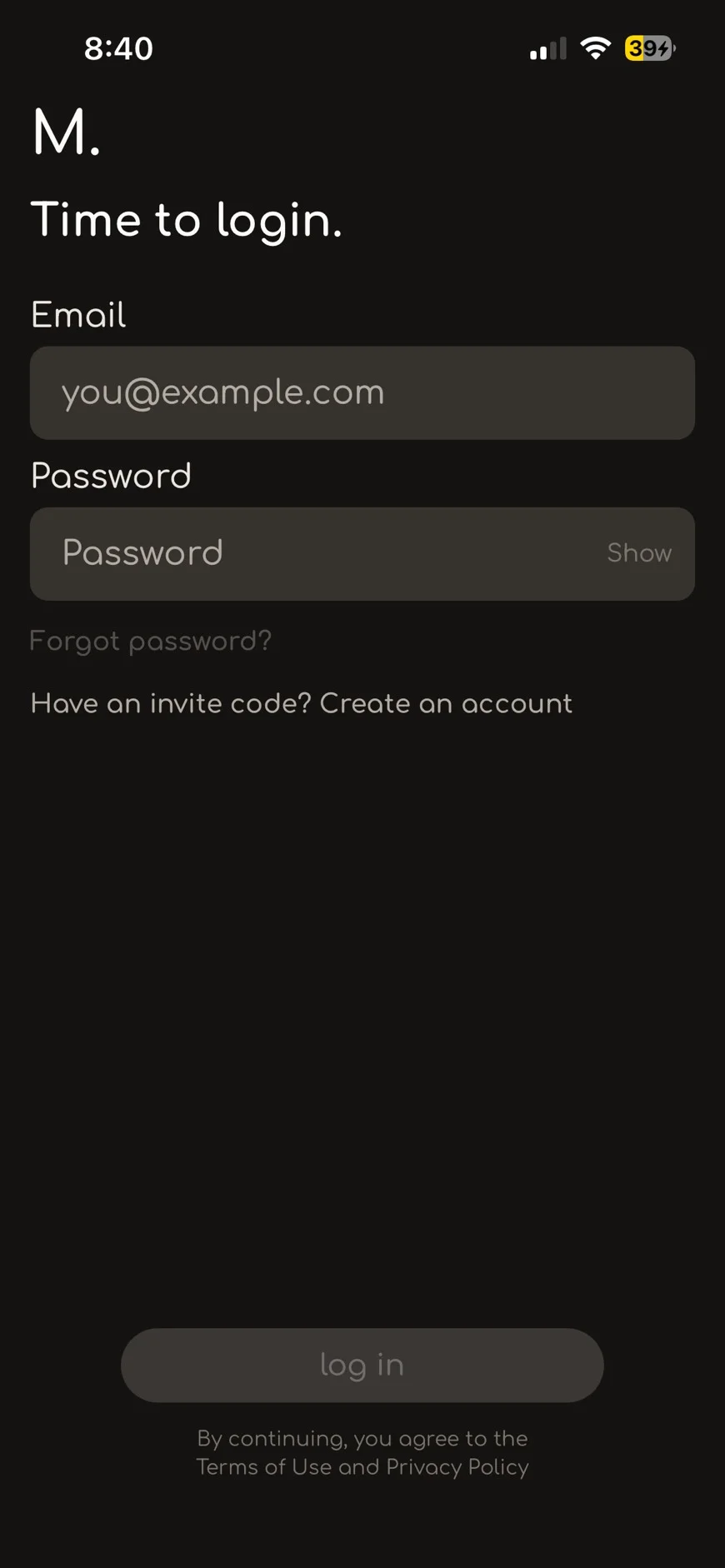
⑧ Time to login.
If you're new, don't log in here.
Tap Have an invite code? Create an account at the bottom.
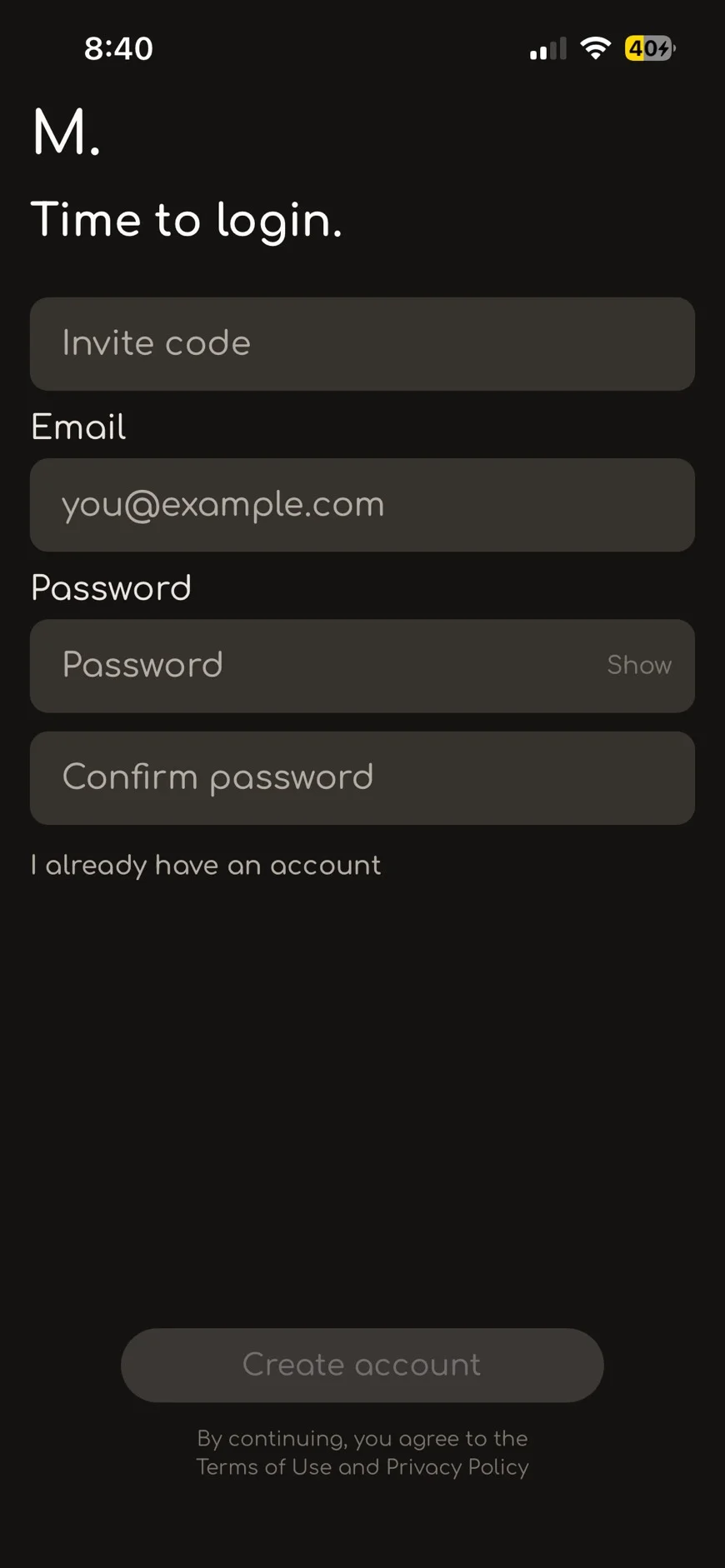
⑨ Create an account
| Field | What to enter |
|---|---|
| Invite code | The org code from the campaign screen in Sampo |
| Your own email address | |
| Password | A password you choose |
| Confirm password | The same password again |
Tap Create account.
- Don't share your org code. It's one account per person.
- Each person gets one Minute Data account and email address. Shared accounts are detected and blocked.
- Already have an account? Tap I already have an account.
C. Pick a task
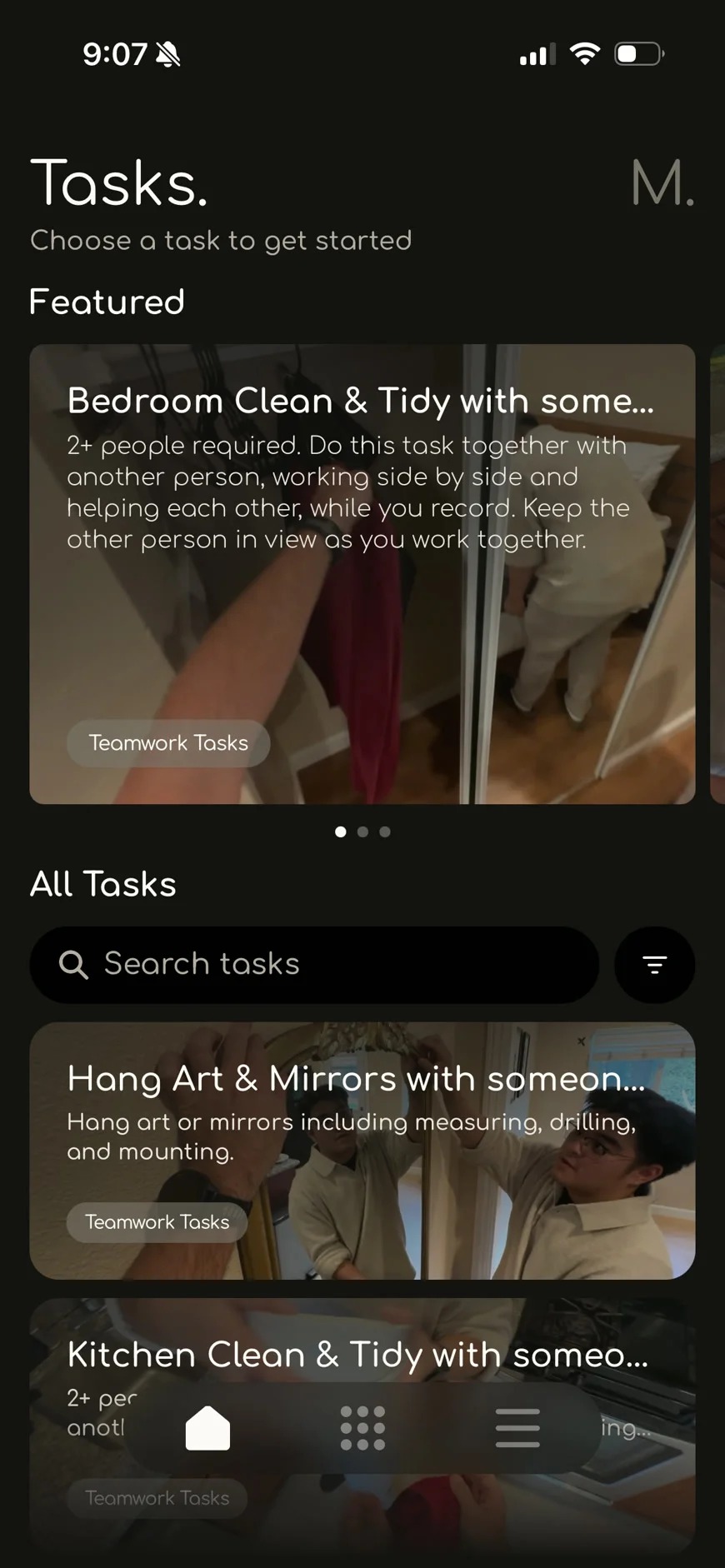
⑩ Tasks.
On the Tasks screen, browse Featured or All Tasks, or type a task name in Search tasks. Every task earns the same reward.
Read each task description to the end. If it ends with a Must or a Not, your video will be rejected unless you follow it. Pick the task that matches the chore you'll actually do.
Not sure what to record? → See all tasks you can record
D. Record
📱 While recording, the phone sits sideways (landscape) in the head mount. That's why the screens below look rotated 90°.
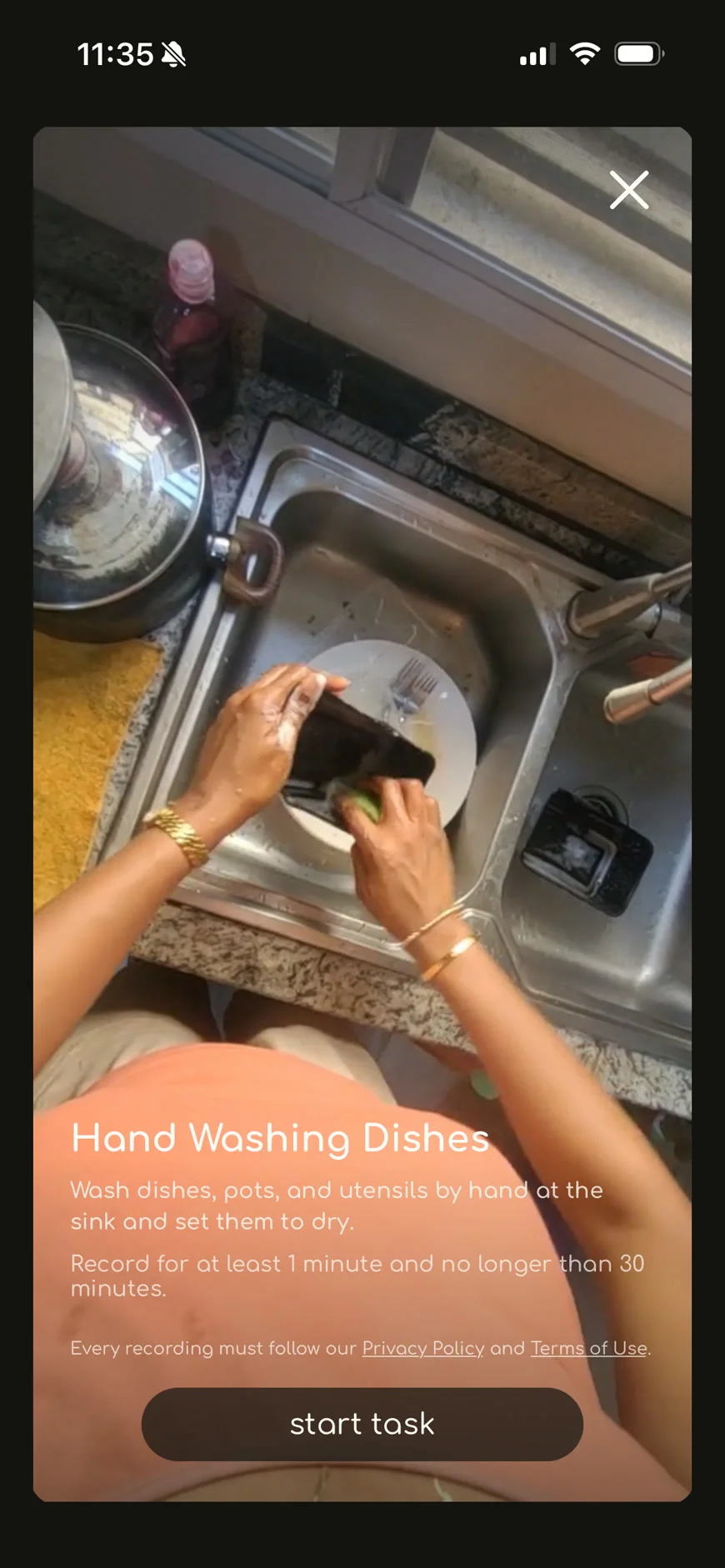
⑪ Task screen
You'll see the task description, for example Hand Washing Dishes.
- Record for at least 1 minute and no longer than 30 minutes. The maximum depends on the task, so follow what the screen says.
- Every recording must follow our Privacy Policy and Terms of Use.
Read the description to the end. If it ends with a Must or a Not, your video will be rejected unless you follow it.
Tap start task.
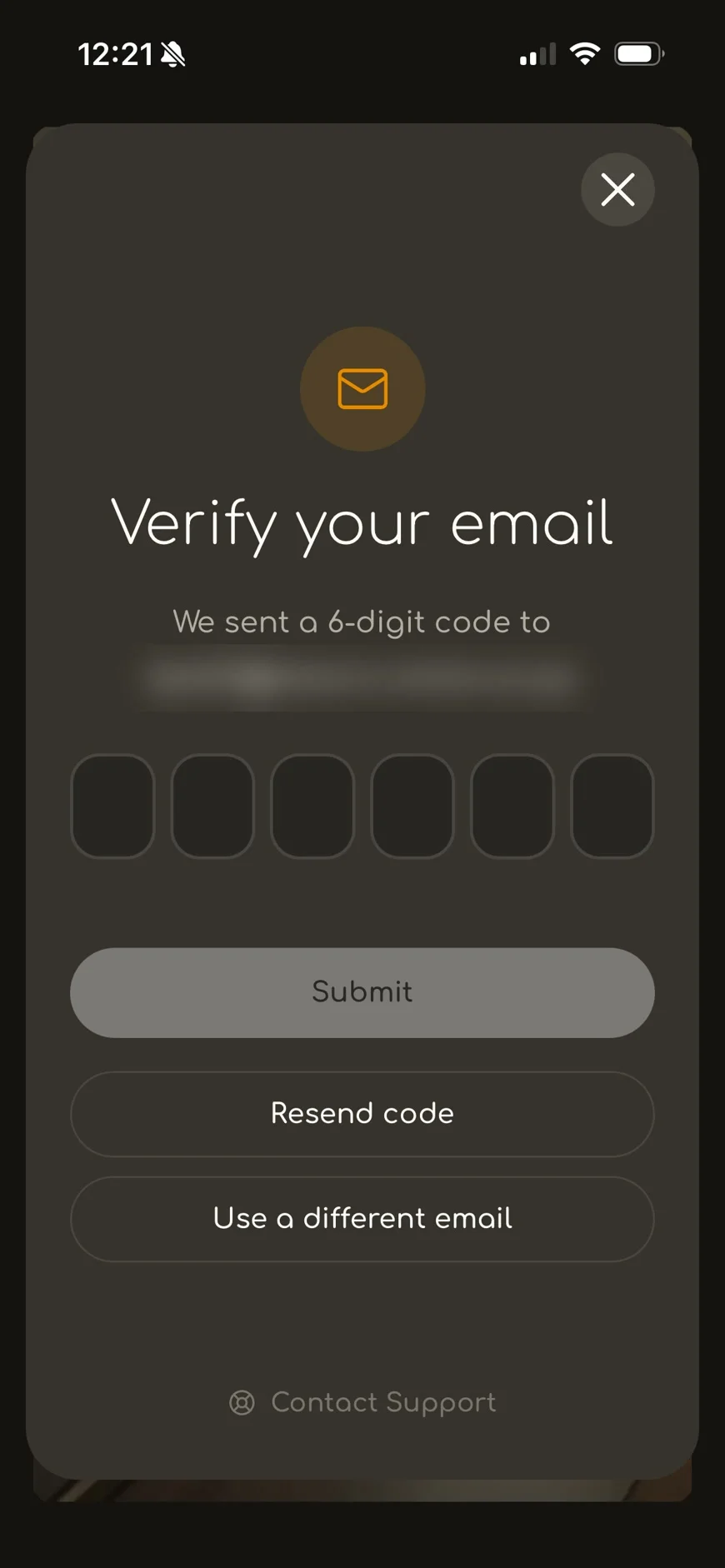
⑫ Verify your email.
You'll get a 6-digit code at the email you signed up with. Enter it and tap Submit.
- Resend code: Sends the code again if it didn't arrive.
- Use a different email: Lets you switch to another address.
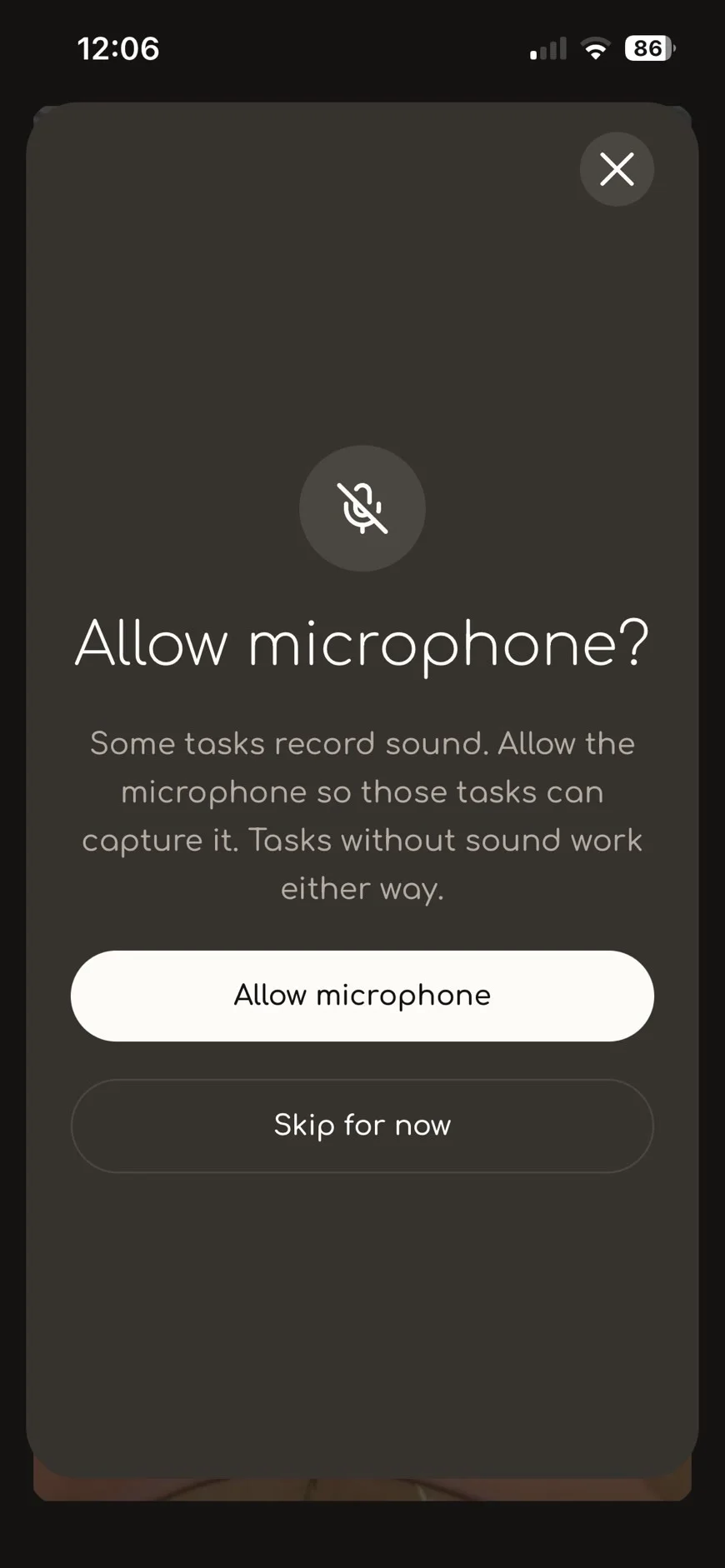
⑬ Allow microphone?
Some tasks record sound too. Tap Allow microphone, then tap Allow on your phone's permission prompt.
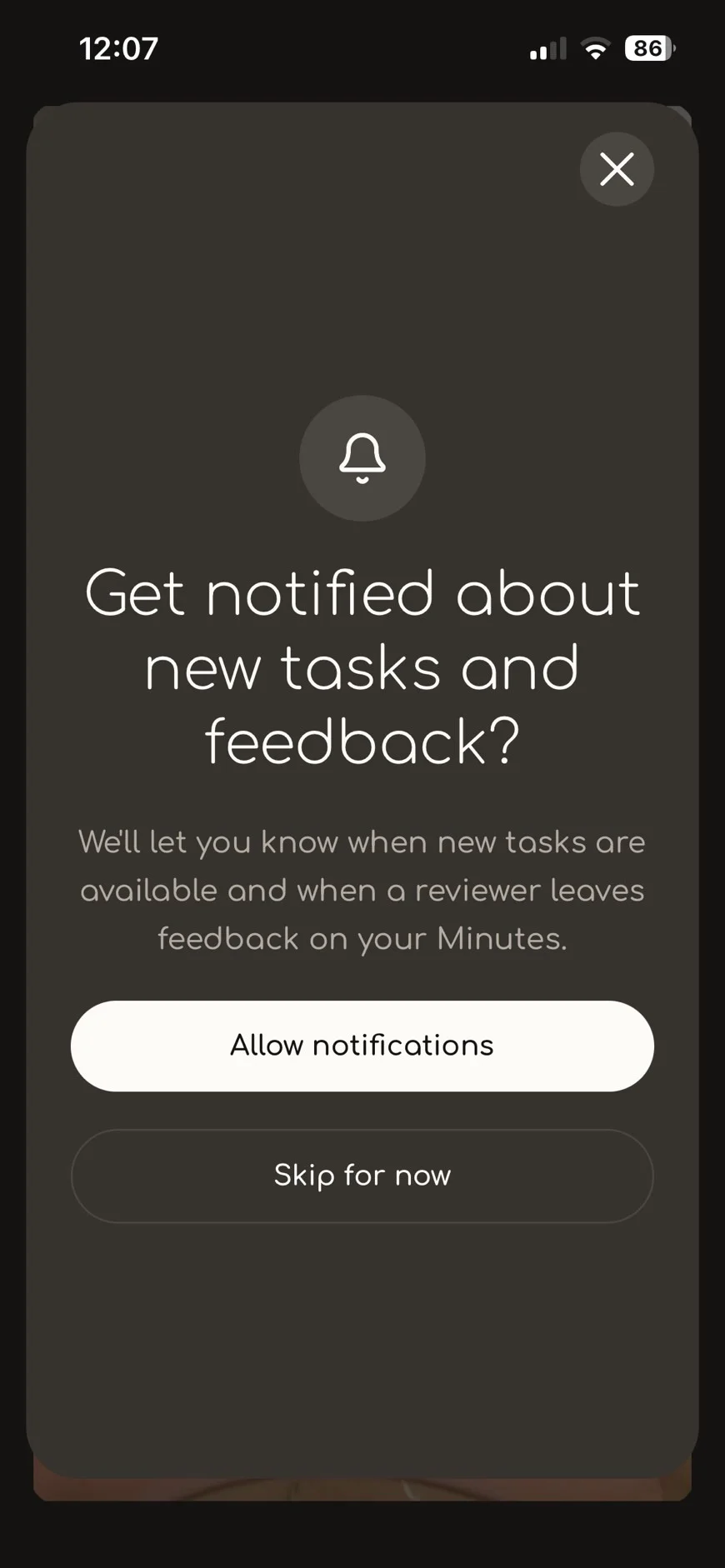
⑭ Get notified…?
You'll be notified about new tasks and review feedback. Tap Allow notifications. You can also tap Skip for now and turn them on later.
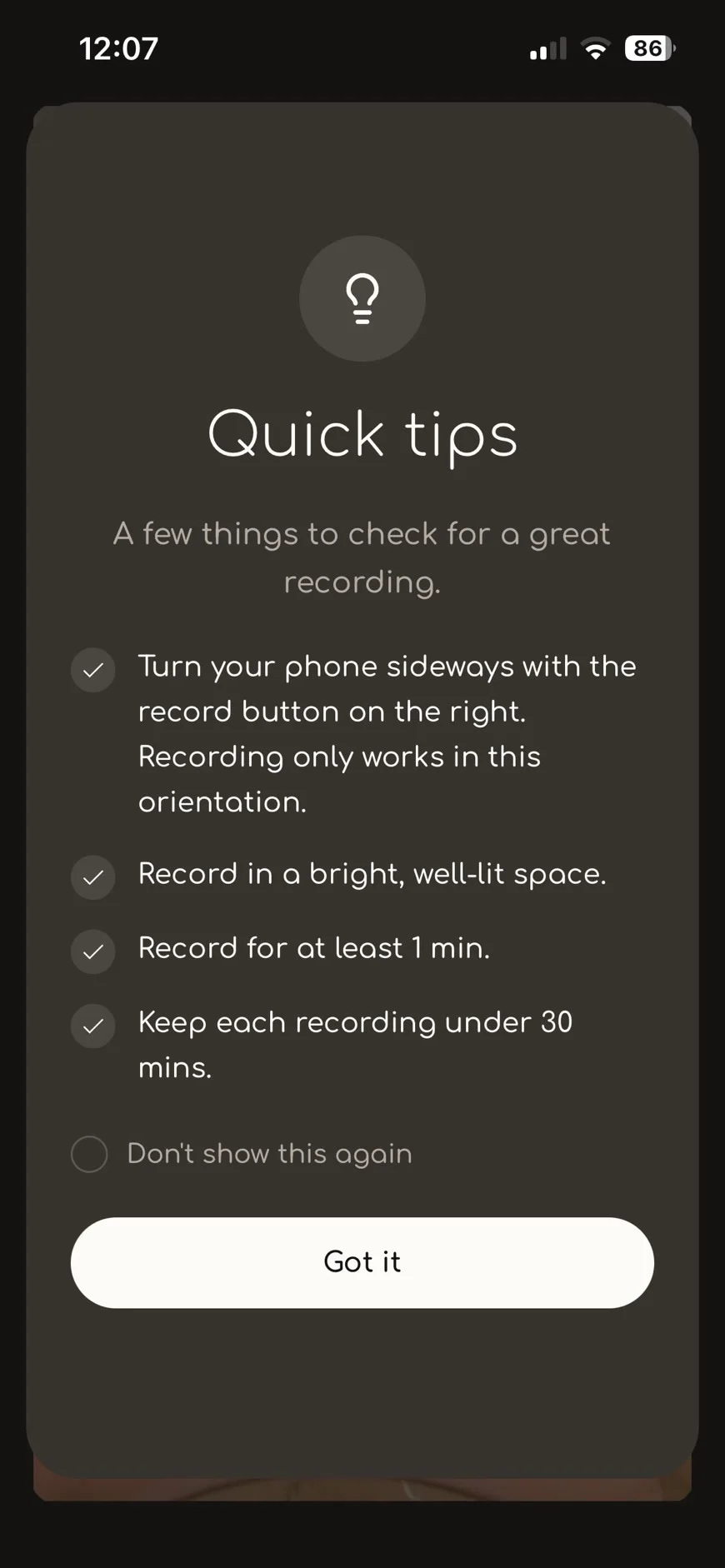
⑮ Quick tips
- Hold the phone sideways, with the record button on the right. It only records in this orientation.
- Record in a bright place.
- Record for at least 1 minute.
- The maximum length is 5–30 minutes, depending on the task. The app shows it.
Tap Got it. Check Don't show this again to skip this screen next time.
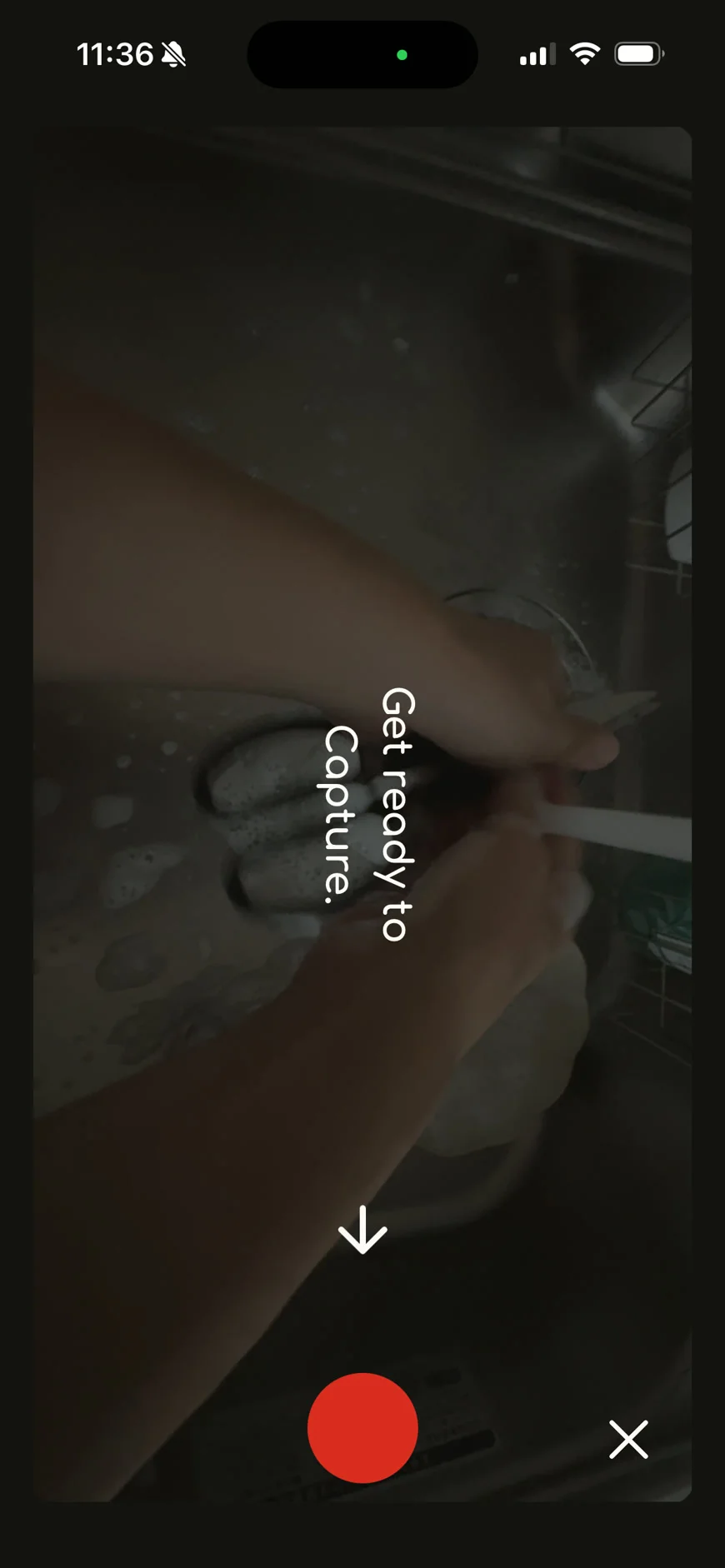
⑯ Get ready to Capture.
Turn the phone sideways, put it in the head mount, and angle it so your hands are in the shot.
When you're ready, tap the red circle button (the one the arrow points to). To cancel, tap × in the bottom right.
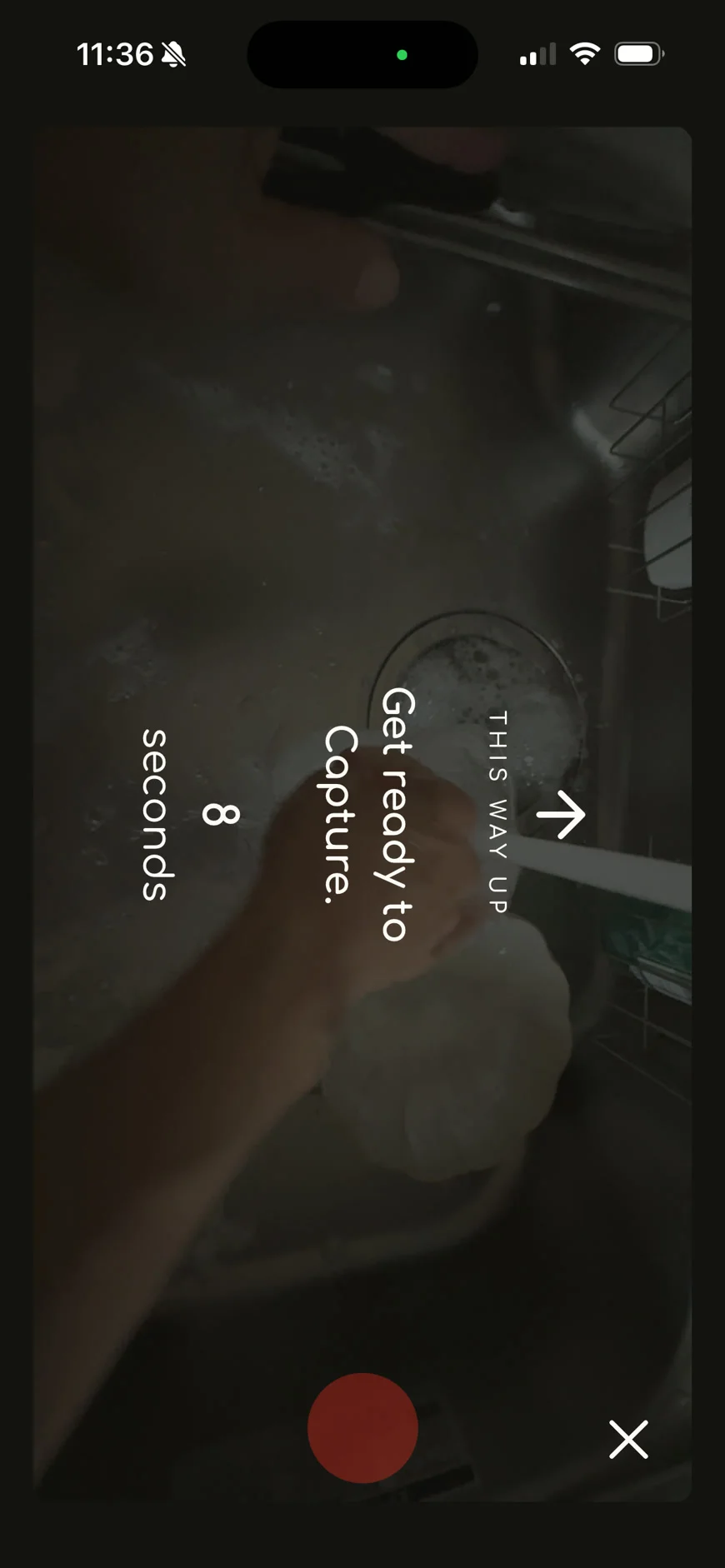
⑰ Countdown (10 seconds)
- 8 seconds: Recording starts in 8 seconds.
- THIS WAY UP →: Mount the phone so the arrow points up.
Use this time to put on the head mount and get in place for your chore.
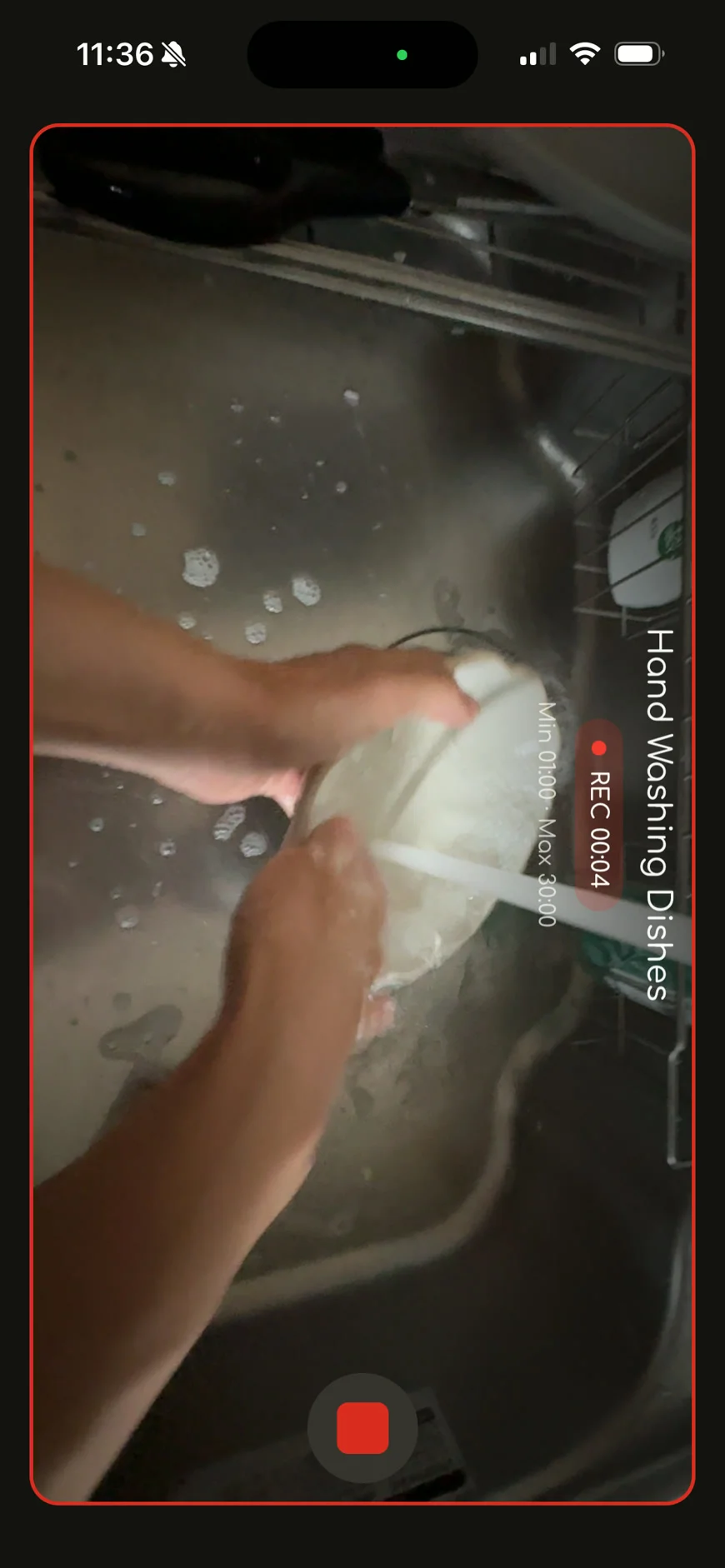
⑱ Recording
- A red border means you're recording.
- REC 00:04 shows how long you've been recording.
- Min 01:00 · Max 30:00 is the shortest and longest allowed. The maximum is 5–30 minutes, depending on the task. Recording stops on its own at the maximum.
Do the whole chore at your normal pace. When you're done, tap the red square button to stop.
If you stop before 1 minute, the app warns you the video is too short to use. Record it again.
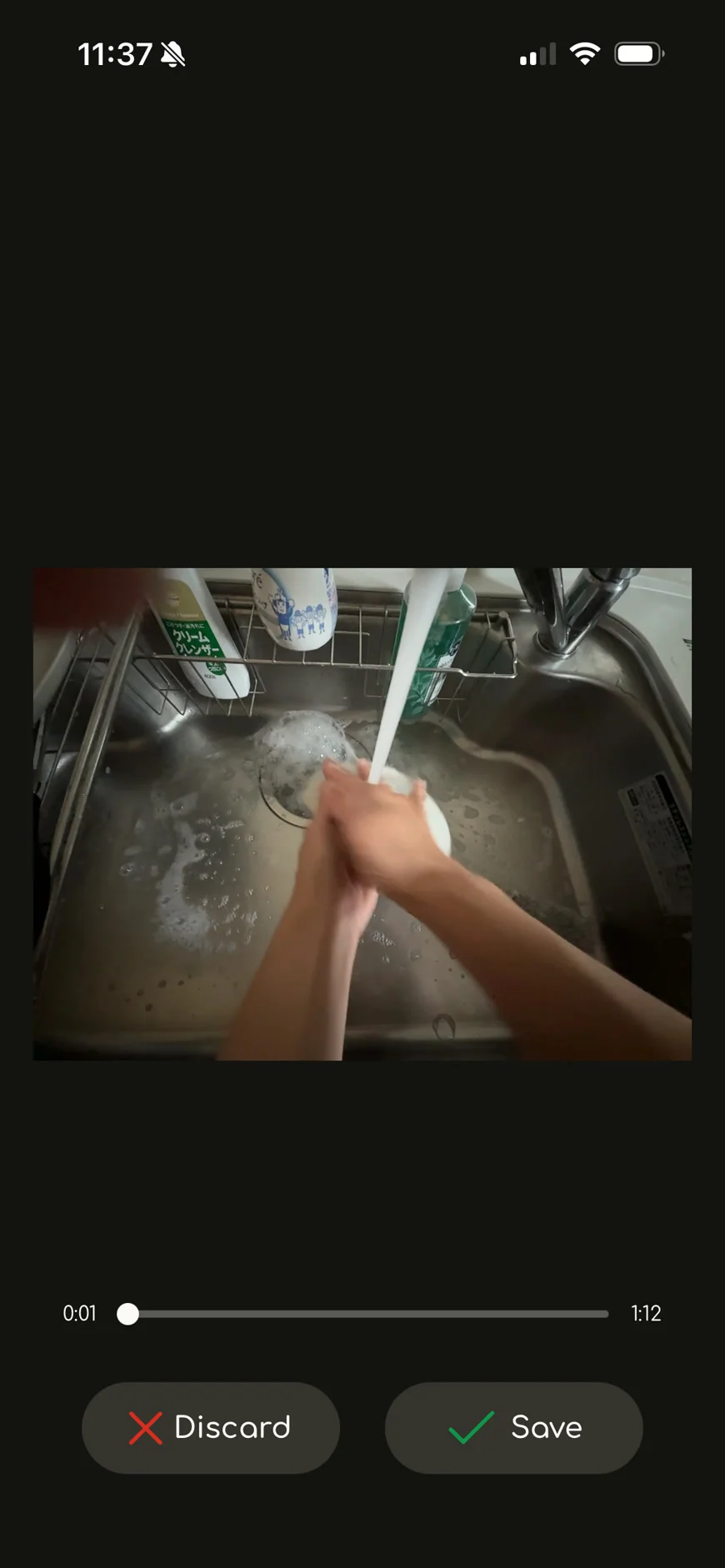
⑲ Review your recording
Play back your video to check it. The number at the bottom is its length (for example, 1:12 is 1 minute 12 seconds).
- ✓ Save: Submit this video.
- ✕ Discard: Delete this video.
If anything you shouldn't film is in the shot, like a PIN or a child's face, tap Discard.
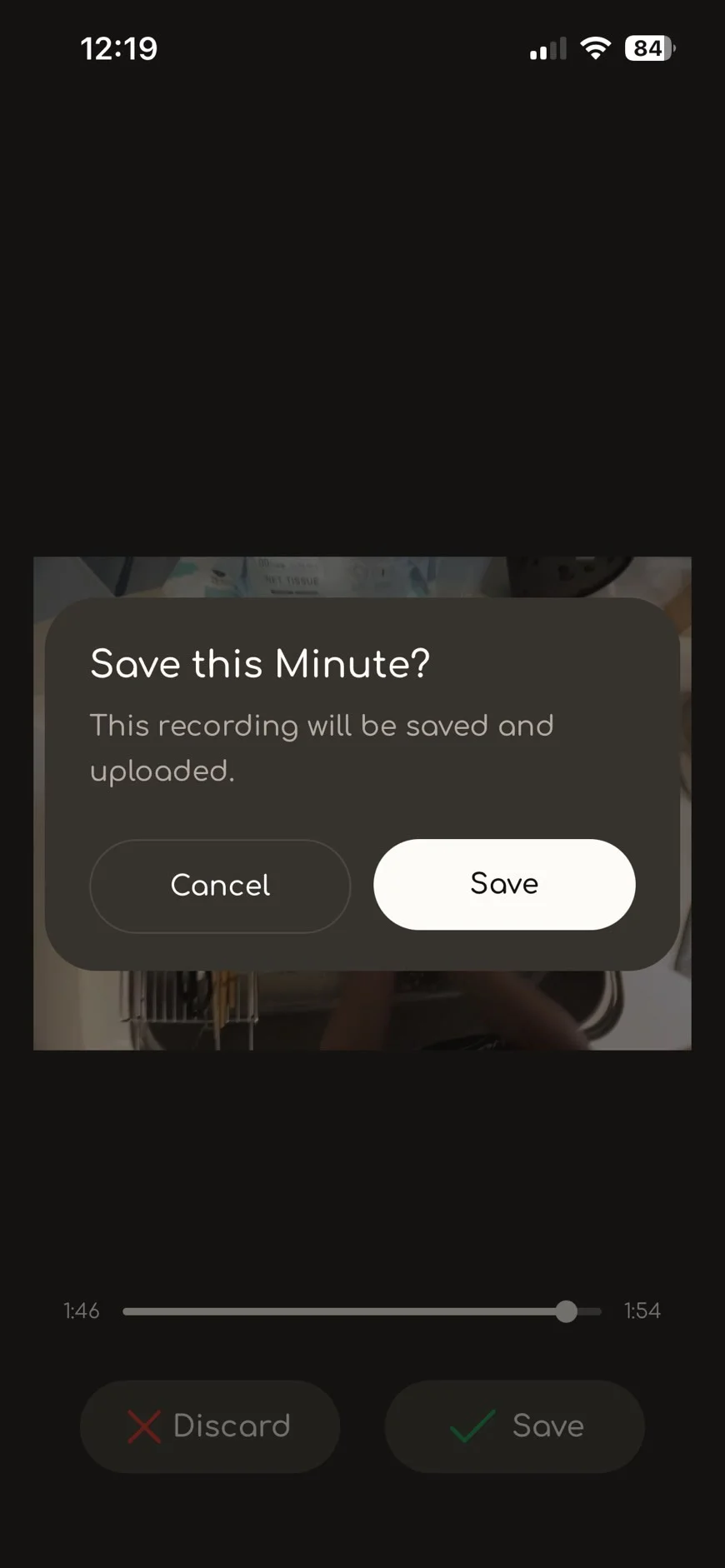
⑳ Save this Minute?
"This recording will be saved and uploaded."
Tap Save again, or Cancel to go back.
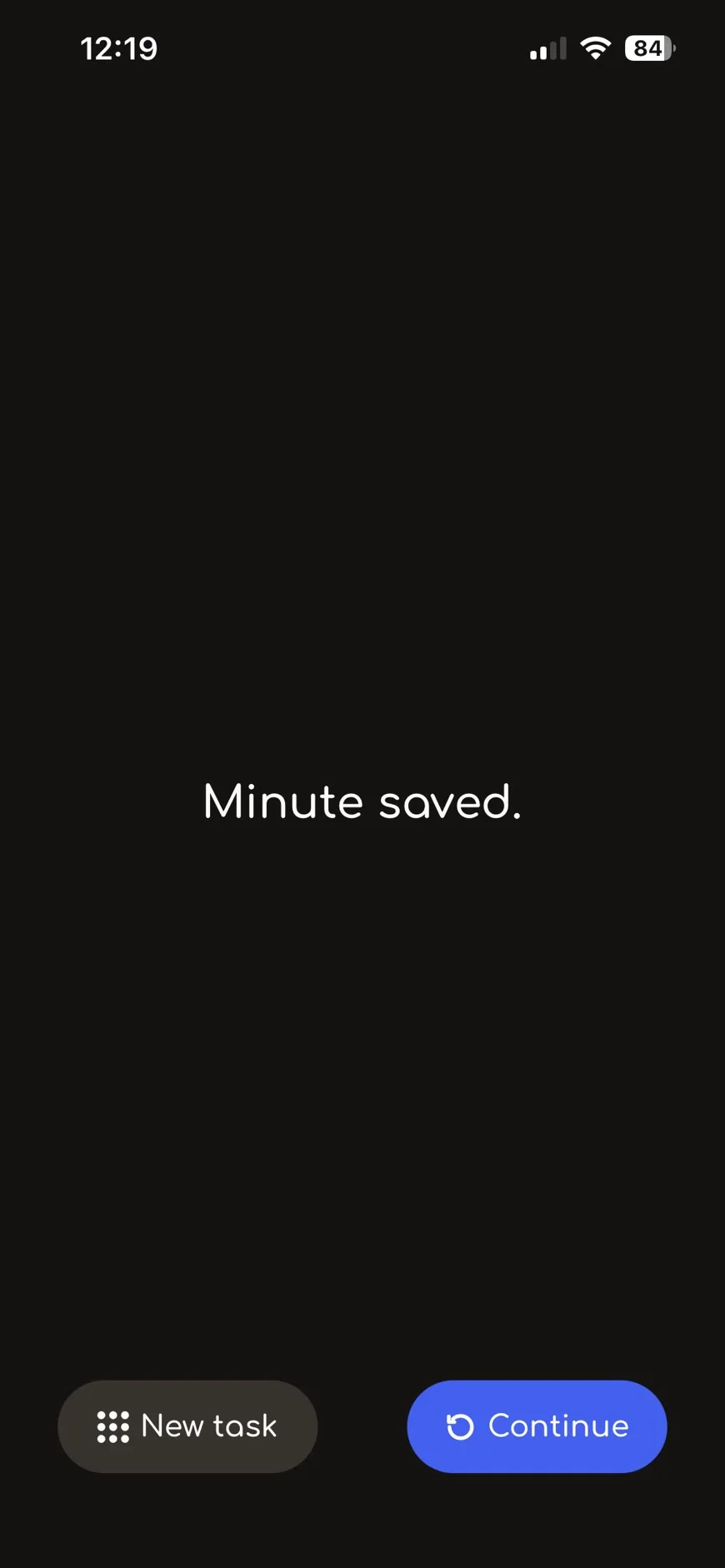
㉑ Minute saved.
- Continue: Record the same task again.
- New task: Pick a different task.
E. See your recordings
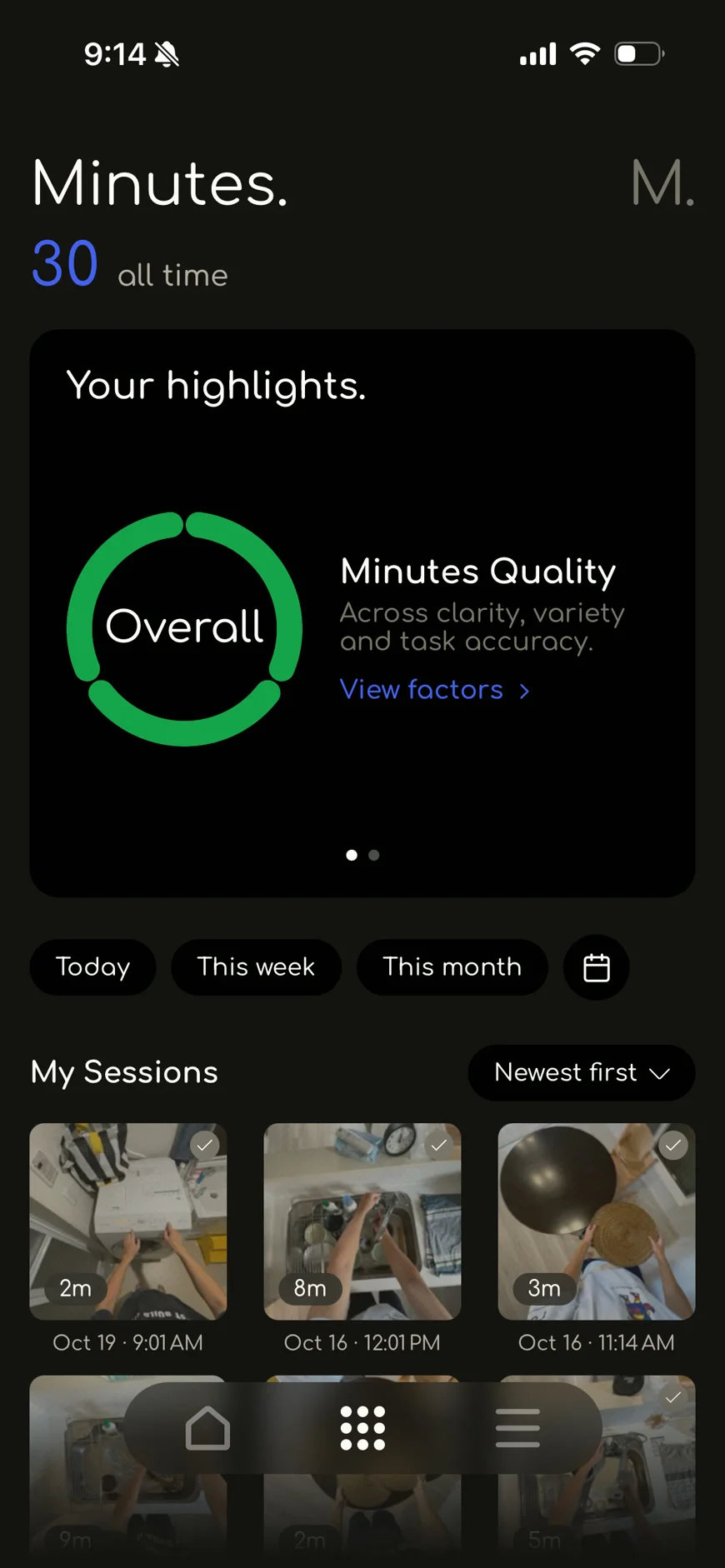
㉒ Minutes.
Open it with the middle button at the bottom of the screen (the dotted icon).
| On screen | What it means |
|---|---|
| 30 all time | Total minutes you've recorded |
| Your highlights. | A summary of your recordings |
| Minutes Quality / Overall | Overall video quality. A bigger green ring is better |
| clarity, variety and task accuracy | How clear your videos are, how many kinds of chores you record, and how well they match the task |
| View factors | See the score breakdown |
| Today / This week / This month | Your recordings by period |
| My Sessions / Newest first | Your videos, newest first |
| 2m, 8m, … | Length of each video in minutes |
These minutes are what you've recorded. Sampo points are based only on minutes approved in review. Points usually arrive within 5 business days after approval. Reviews sometimes take longer, so thanks for your patience.
F. Delete a video
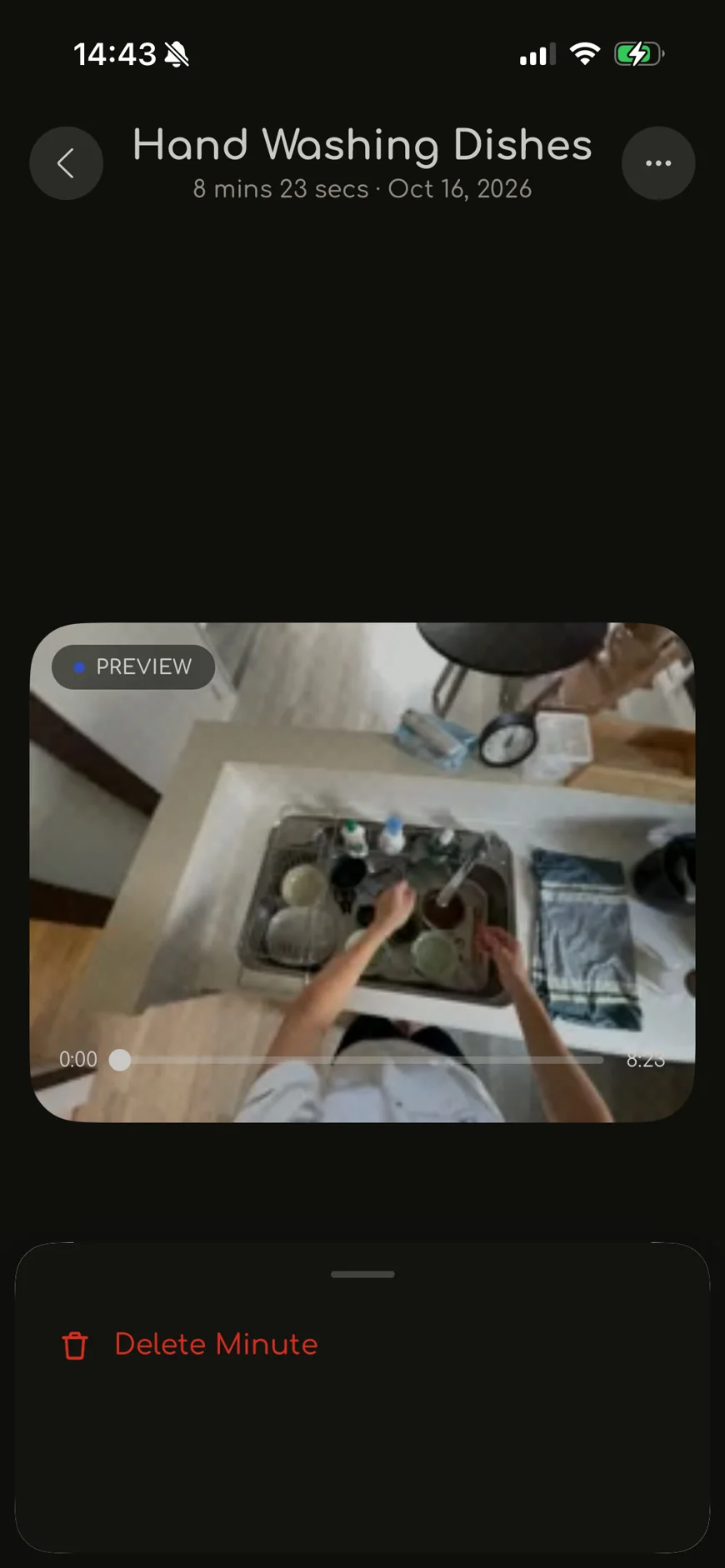
㉓ Delete Minute
Saved a video by mistake, or caught something that shouldn't be in it? Delete it like this:
- Tap the middle button at the bottom (the dotted icon) to open Minutes.
- Under My Sessions, pick the video.
- Tap … in the top right, then Delete Minute.
Videos that have already been reviewed or delivered may not be deletable. Delete as soon as you notice.
Need help?
Email support@sampo.cash. You can also find the recording manual in Sampo: on the campaign screen, tap Learn → Recording manual.
Still stuck? Chat with us
Can't find what you need? Message Sampo Support and we'll help.